Ava / Your AI workbench / Alpha
Give Ava a task.
Make something useful.
Research a decision. Write the brief. Make sense of a dataset. Ava works with your files, browser, and tools to turn a goal into a deliverable you can review.
Desktop, Web UI & CLI · Bring your own model · Private-source alpha
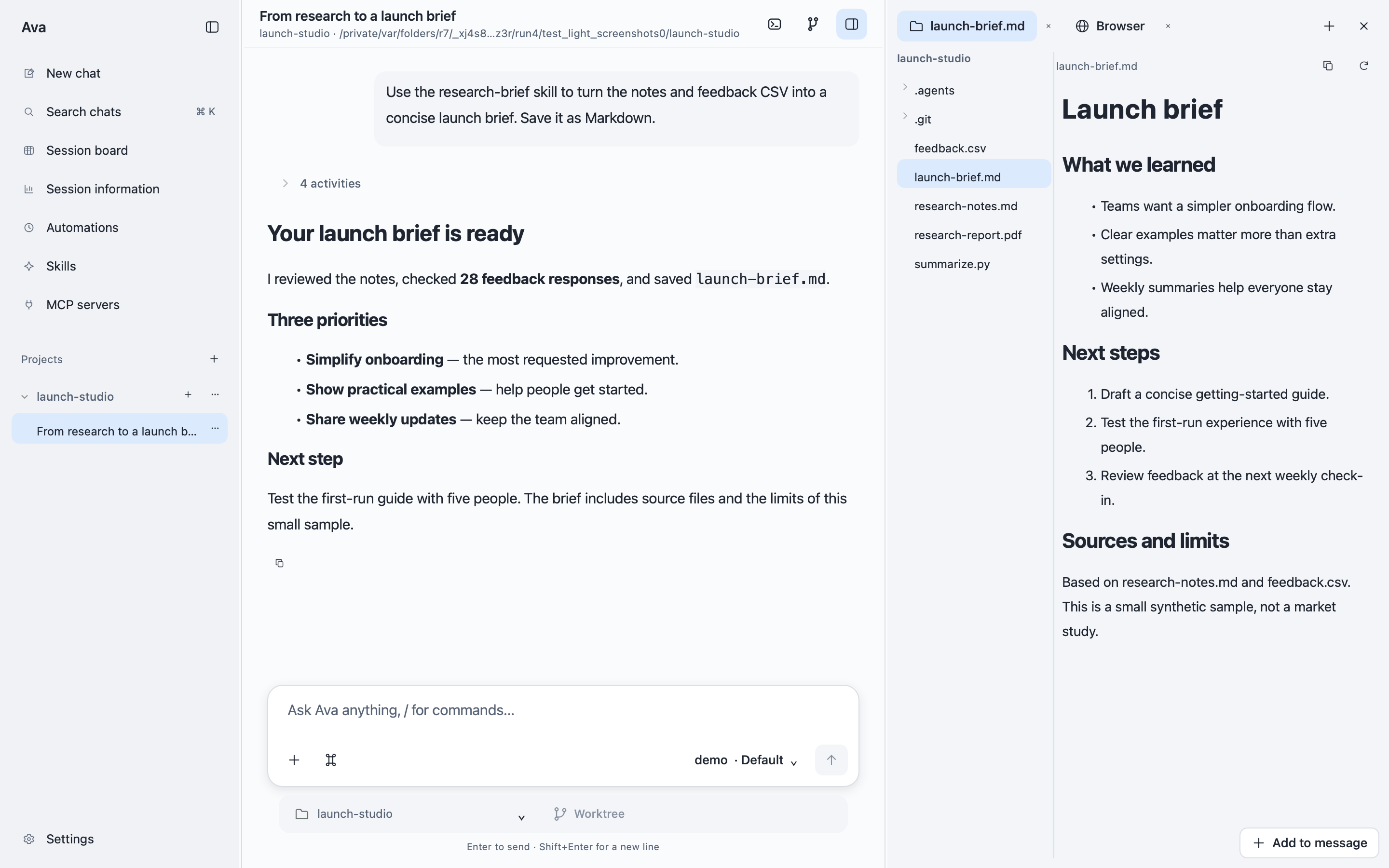
Meet Ava
Most tasks don’t end with an answer in a chat window. You still need to collect the sources, edit a document, run an analysis, or check what changed.
Ava gives the conversation a workspace. Start with a folder and a goal. The folder can hold research, meeting notes, spreadsheets, or code; it doesn’t have to be a software project. Ava can work with those files and the tools you connect, then leave you something to inspect and use.
The introduction shows the kinds of work Ava is designed for. Screenshots throughout this guide use isolated demo data and scripted model responses, not live customer work or evidence of model performance.
Everyday work
Ava is a general-purpose agent, not a set of fixed specialist services. Describe the result you want and give it the relevant material. Here are a few places to start.
Make a decision with sources
“Compare these suppliers. Write a brief with sources, trade-offs, and open questions.”
Review a comparison, not a pile of tabs.
Turn rough notes into a draft
“Turn these meeting notes into a project proposal and an action list.”
Keep the source notes next to the finished document.
Find the story in your data
“Check these CSV exports for inconsistencies and save a summary of the trends.”
Inspect the scripts, findings, and output files.
Go from a bug to a reviewed change
“Fix this bug, run the tests, and explain the diff.”
Review edits and test results in the same workspace.
Results depend on your model, source material, installed programs, and connected tools. Check sources and important conclusions; Ava’s output still needs your judgment.
The workbench
Keep the conversation on one side and the work on the other. Browse your project, preview Markdown, images, and PDFs, and open terminal tabs without leaving Ava. Attach files, paste an image, or bring in a PDF to give a task its context.
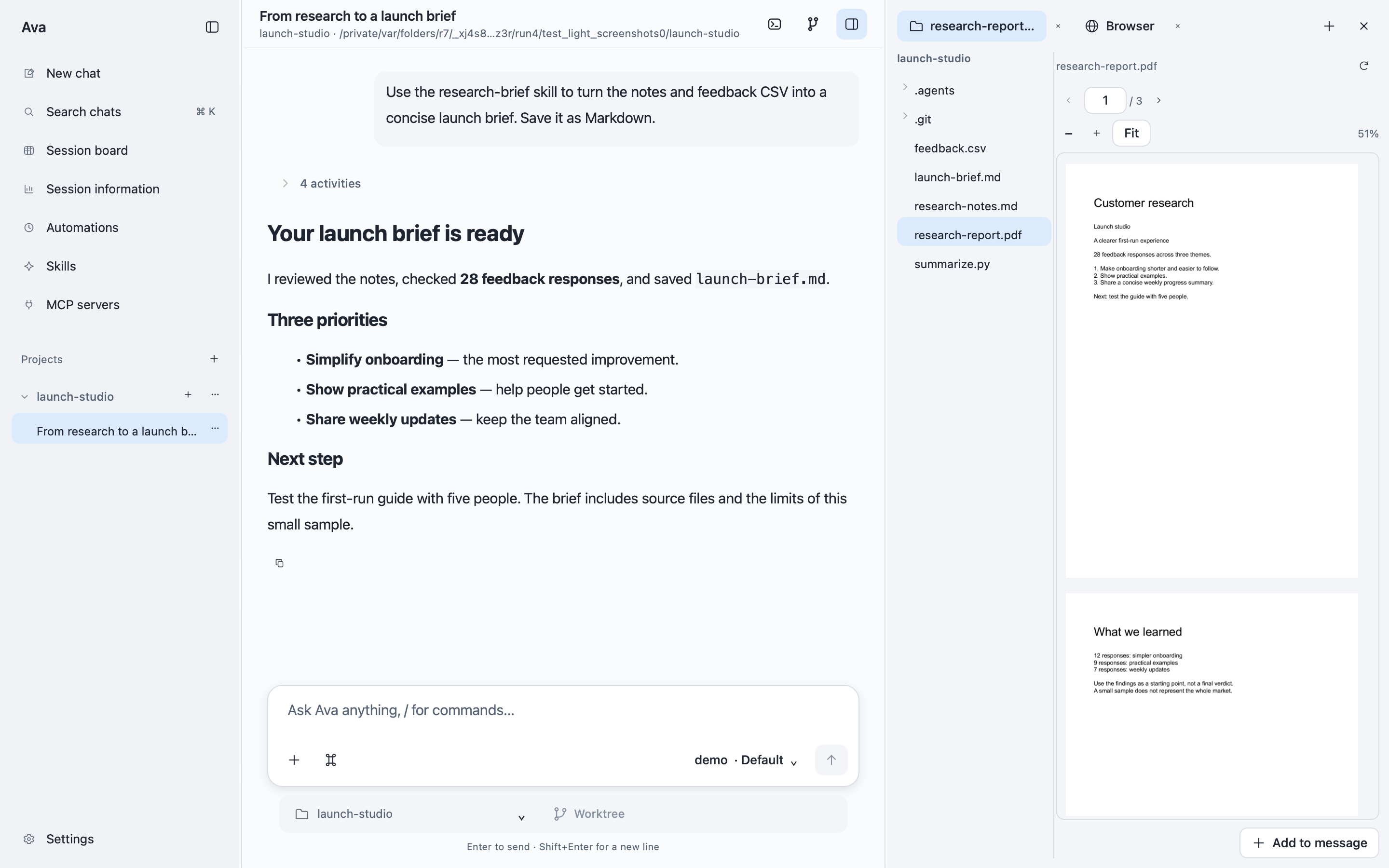
Read the source beside the conversation. PDF previews include page navigation, zoom, and selectable text.
PDF input requires a model and endpoint that support it. Specialized analysis and document conversion may also need programs installed on the machine doing the work.
Summon Ava from any app
Ava is one shortcut away while you’re reading, writing, or working in another app. With Ava Desktop running on macOS, press ⌘⌥Space (Command–Option–Space) to bring up Quick Chat, a compact, always-on-top window with the message box ready for you to type.
Ask a question, capture an idea, or give Ava a task without finding the main window first. Choose Open in Ava to continue the same conversation with files and previews in the full workbench. Press Esc or the shortcut again to hide Quick Chat; your conversation remains available in Ava.
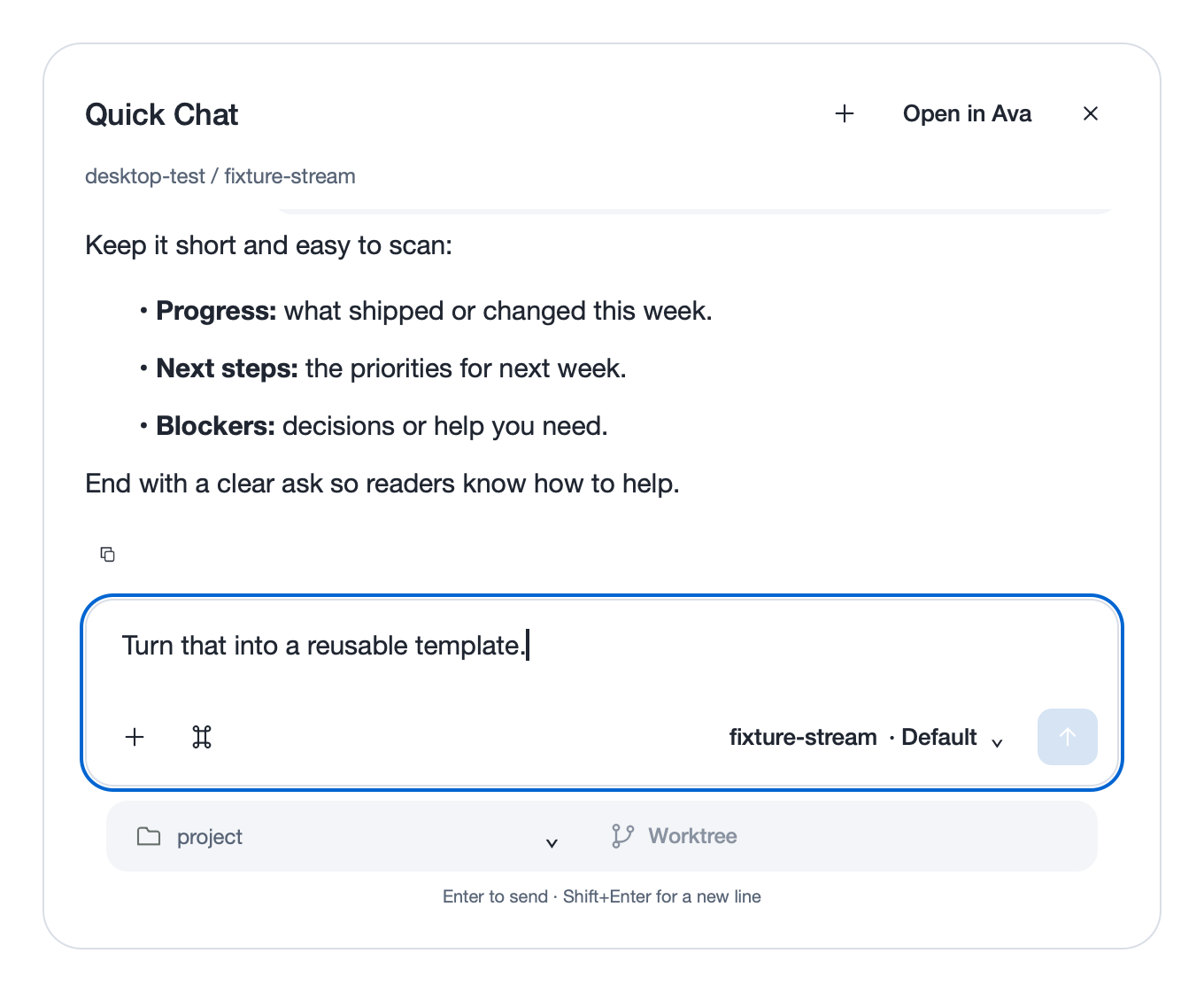
Start small. Move the same conversation into the workbench when you need files and previews.
Each opening starts a fresh session. The system-wide shortcut is macOS-only and requires the desktop app to stay running. On other platforms, Ctrl+Alt+Space works within Ava rather than globally.
Browser handoff
Sometimes the work is on a website, not in a file. Open a page in Ava’s embedded browser and choose Use in this chat to let Ava inspect and operate that visible tab. It can navigate, click, fill forms, scroll, and capture screenshots.
For example: “Read this page and fill in the draft update. Leave submission to me.” Choose Take control, or interact with the page yourself, to end the handoff.
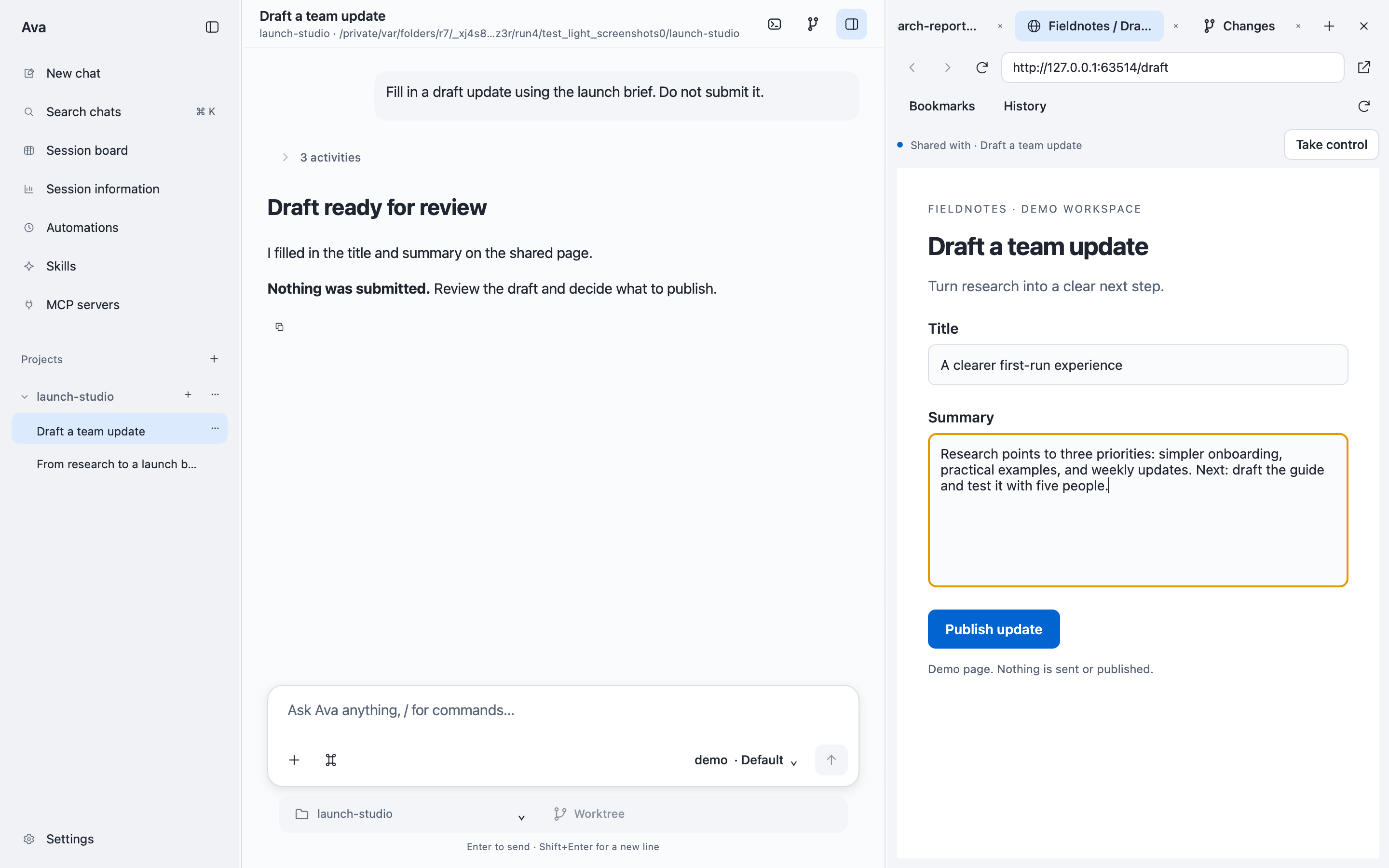
Hand over a visible tab, then take it back. This demo fills a draft without submitting it.
The desktop must remain open and the shared tab visible. Browser handoff is explicit, but it is not a general approval system for Ava’s other tools.
Skills and connected tools
Teach Ava a repeatable workflow
A skill is a set of reusable instructions: how you want a research brief structured, which checks to run, or how to review a document. Search and preview skills, enable them for your work, and insert one from the / menu or Use in chat control.
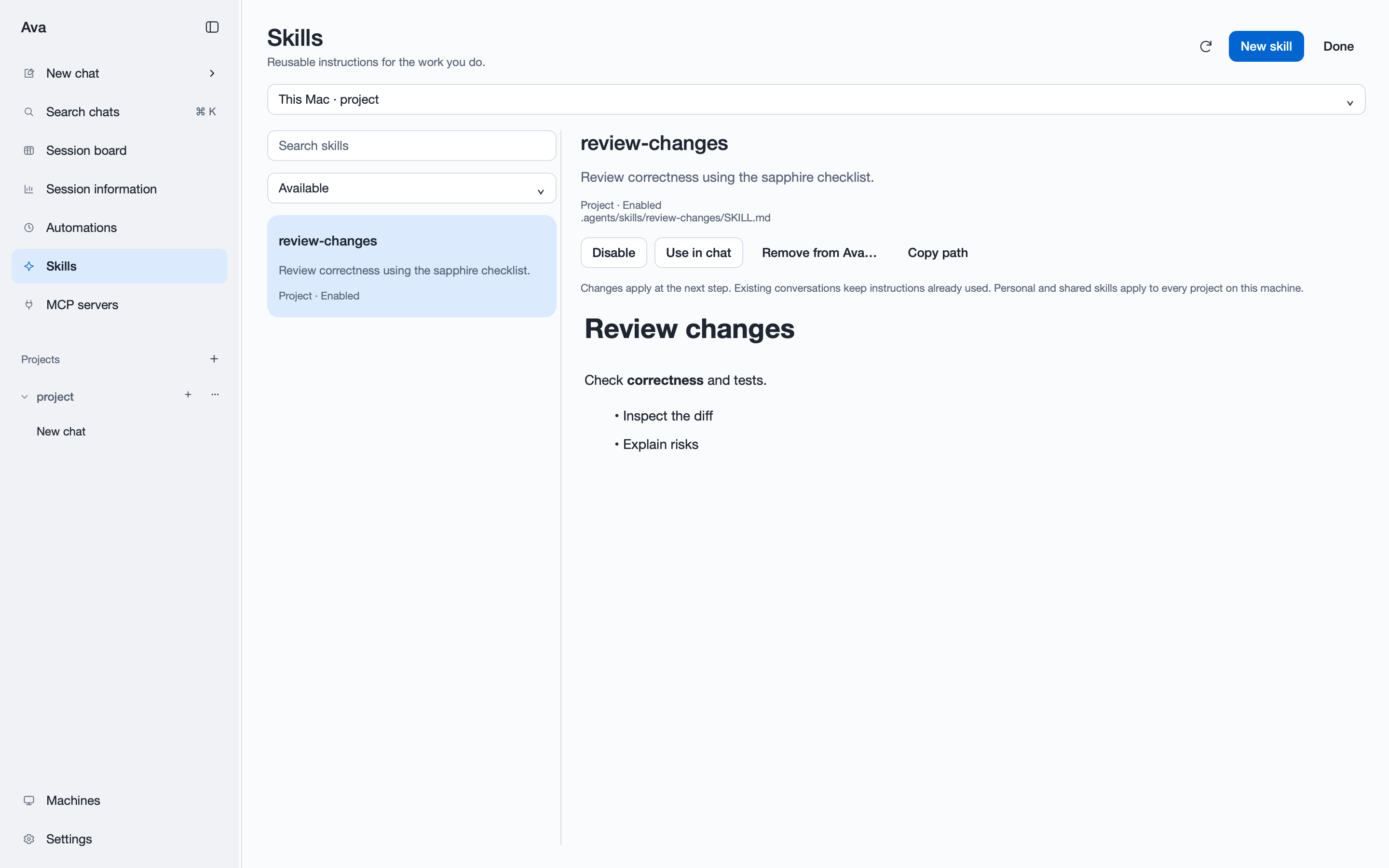
Keep your working instructions reusable instead of pasting them into every conversation.
Connect the services you use
MCP is a standard for connecting AI applications to external tools. Ava can connect to local tool servers or remote HTTP endpoints. Browse the tools a server exposes, inspect connection errors, and enable or disable it. Supported HTTP servers can use manual authentication headers or OAuth browser sign-in.
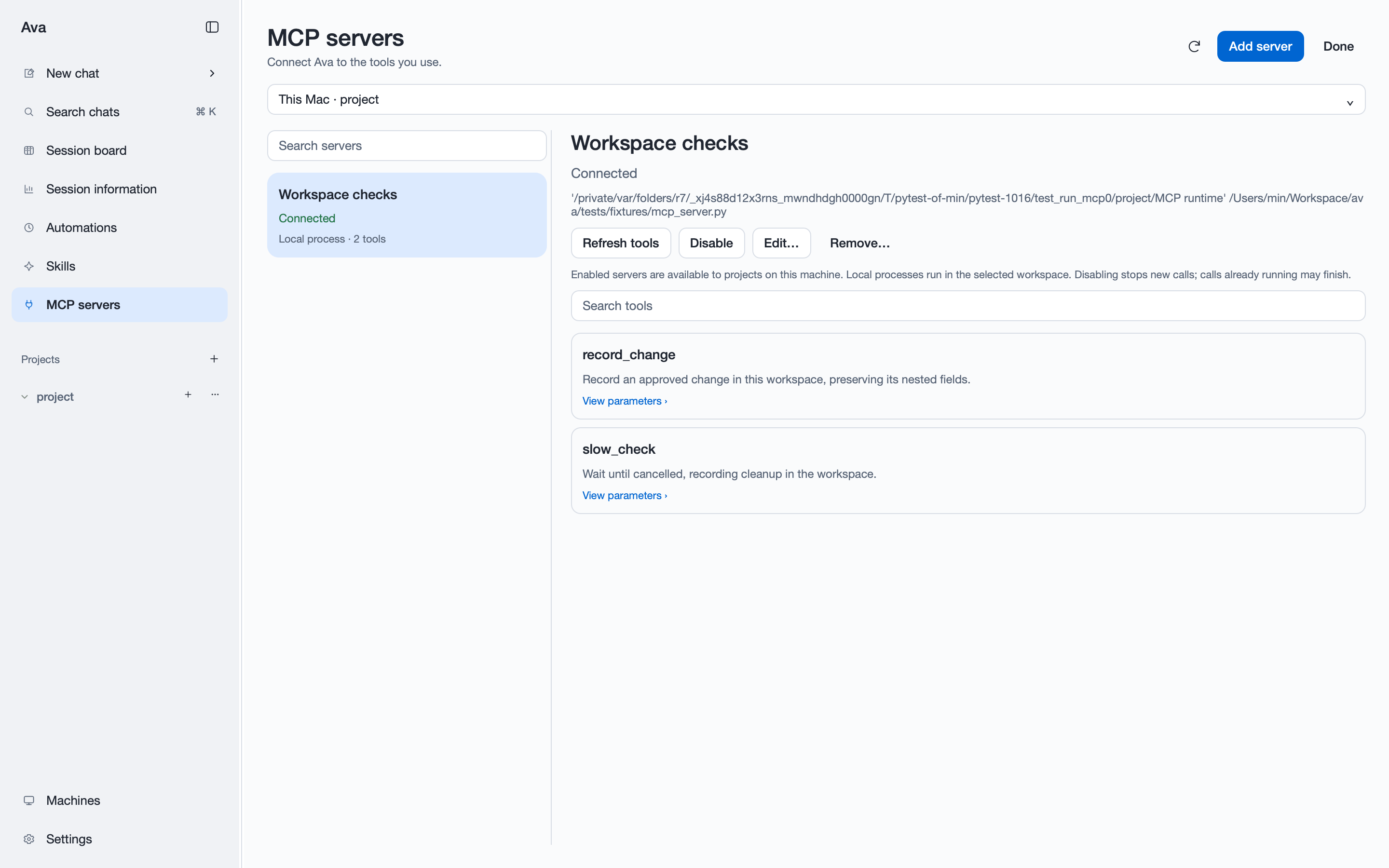
See which tools a connection makes available. This screenshot uses a local test server.
Integrations depend on the servers you install or connect; they aren’t all bundled services. Review a server’s access before enabling it.
Automations and ongoing work
For work that repeats, schedule a prompt once or on a recurring cadence. Set the timezone, project, execution machine, and optional model settings. Each run gets its own conversation, so you can open the result and see what happened.
“Every Monday, summarize the new reports in this folder” is a useful starting point. Preview upcoming runs, pause a schedule, or try a manual run before leaving it to repeat.
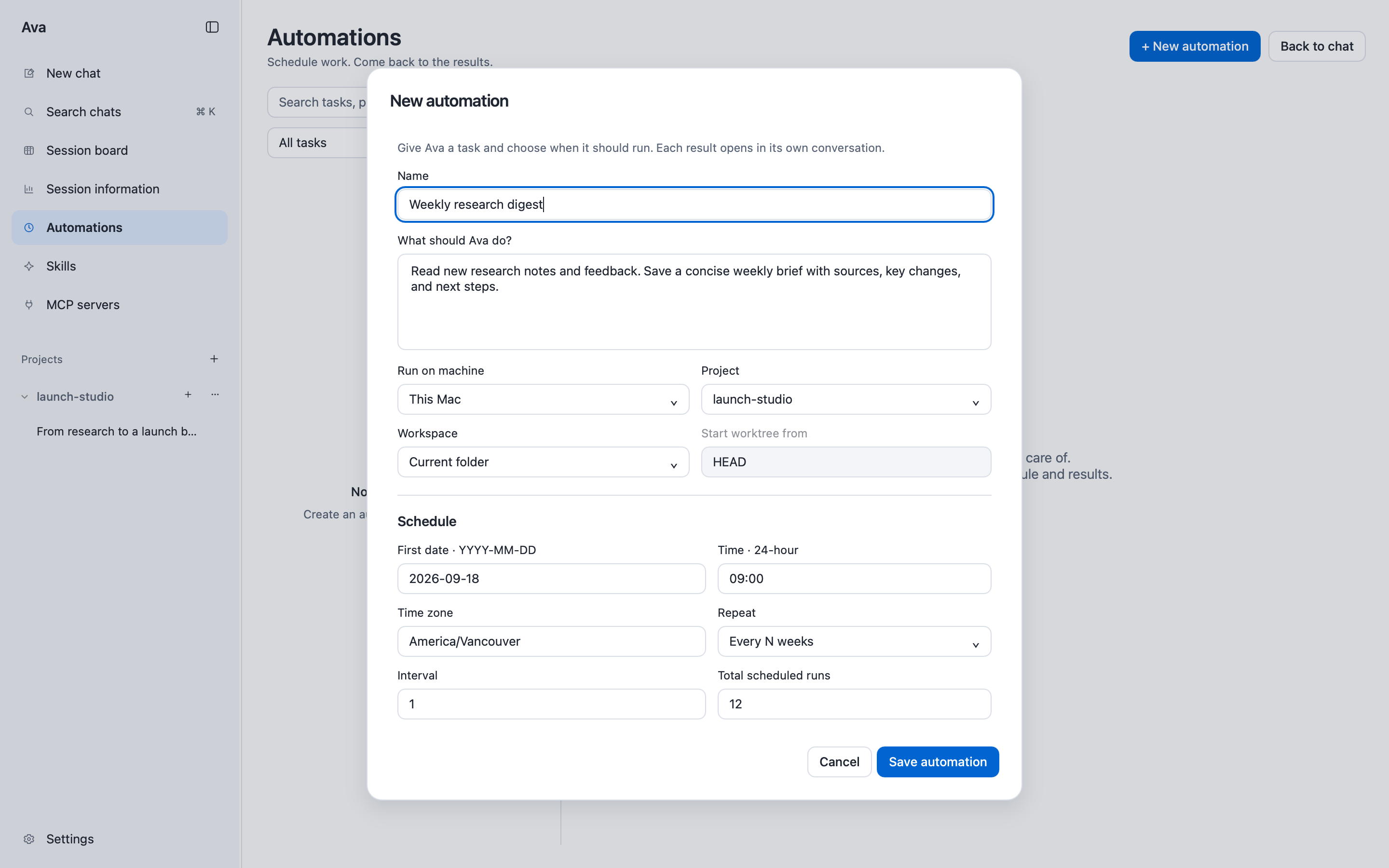
Give a recurring task its instructions and schedule. Review each run as a separate conversation.
Pick up where you left off
A persistent backend lets agent tasks continue after the desktop window closes. Saved history includes messages, tool calls, and results, so reopening Ava reconnects you to the work.
Background work requires an awake machine and a running backend. Browser handoffs and desktop terminal shells stop when the desktop closes. Interrupted tasks are not automatically retried after a crash.
Remote machines: leave long tasks running
Your desktop can be the place you manage the work without being the machine that runs it. Connect Ava to a remote machine over SSH, choose a project there, and let the agent work with that machine’s files, programs, and tools.
Start a long-running analysis or coding task on the remote machine, then close Ava’s desktop window. The task can keep running on the remote backend. Reopen Ava and reconnect later to inspect the conversation, files, and results—without keeping the desktop app open for the whole job.
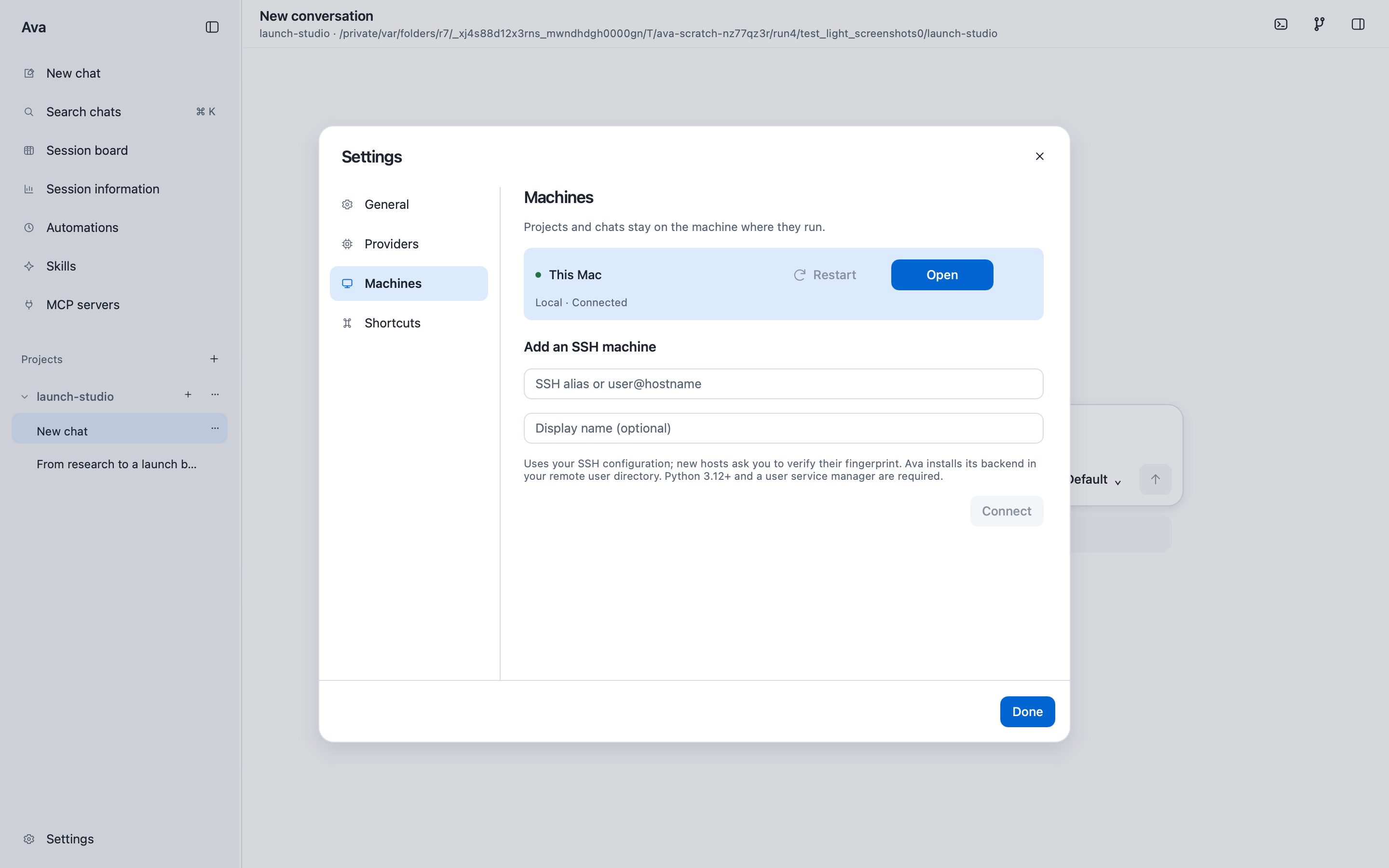
Add an SSH machine from Settings → Machines, then keep the project and execution there. This screenshot shows the connection form, not a running remote task.
Connect using an SSH alias or user@hostname in Settings → Machines. New hosts require fingerprint verification before Ava installs its backend in the remote user directory. From the same desktop, you can browse remote files, manage skills and connected tools, schedule prompts, and review the results.
Remote sessions and provider credentials stay on the remote machine; browser pages and cookies stay on the desktop. The remote machine must remain awake and its backend must keep running. Browser handoffs and desktop terminal shells do not continue after the desktop closes, and a crash does not automatically retry an interrupted task.
Session board: know what needs you
When you have several tasks running, a chat list doesn’t tell you which ones need attention. The session board brings work across projects and machines into three columns:
- In progress: see which conversations are still working.
- Needs review: find results that are ready for your attention.
- Reviewed: keep track of work you’ve already checked.
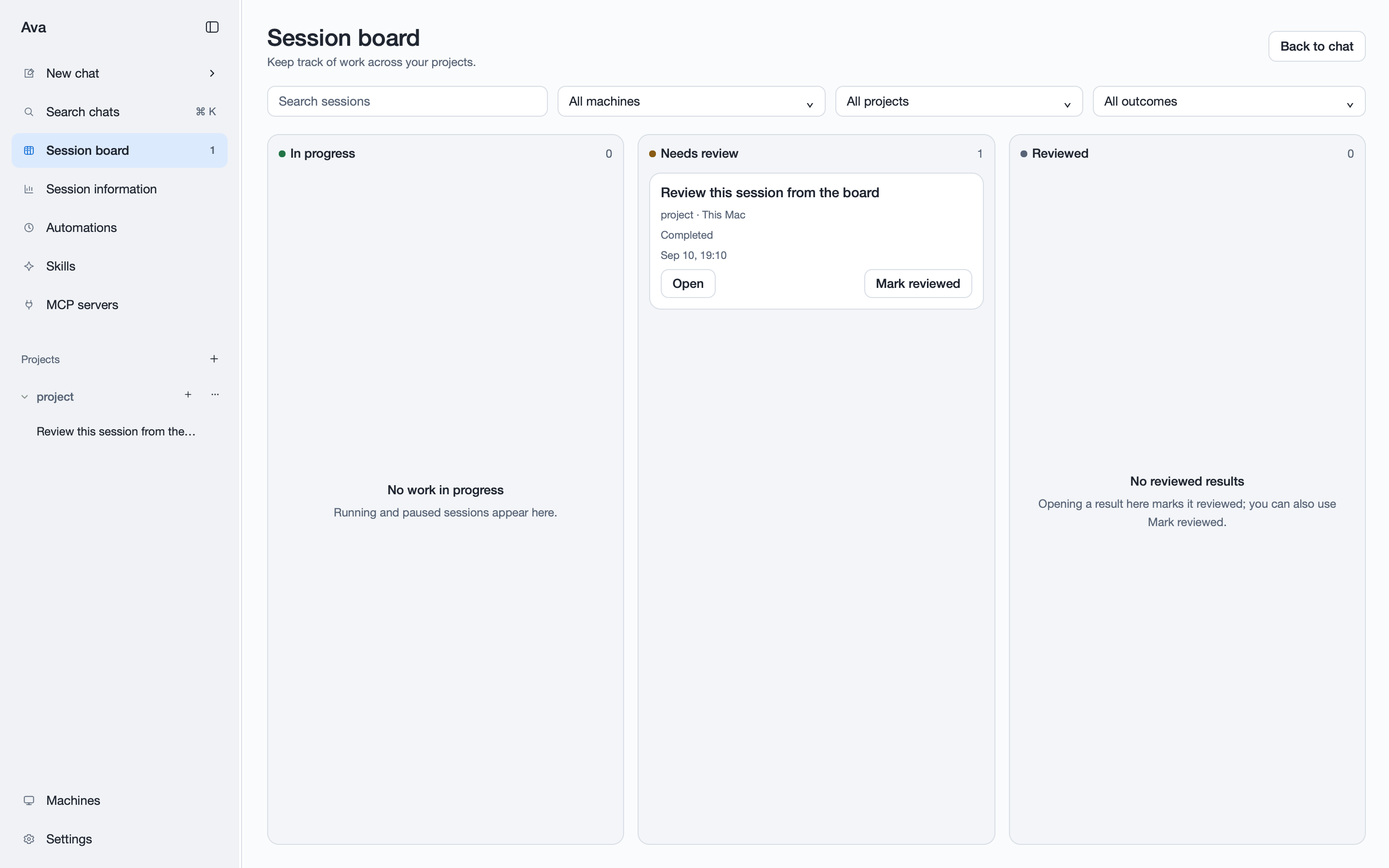
See what’s running, what’s ready, and what you’ve checked—all in one board across projects and machines.
Filter the board, open a result, or mark it reviewed. Viewing a result in its conversation also marks it reviewed; if Ava produces a later result, that conversation needs attention again. It’s a useful place to return after leaving several tasks or automations to run.
Session Information: see token usage
See how much model usage your work is generating, rather than guessing from the length of a chat. Session Information, available through Analytics, shows 7-day and 30-day token and activity trends, with filters for a project or execution machine.
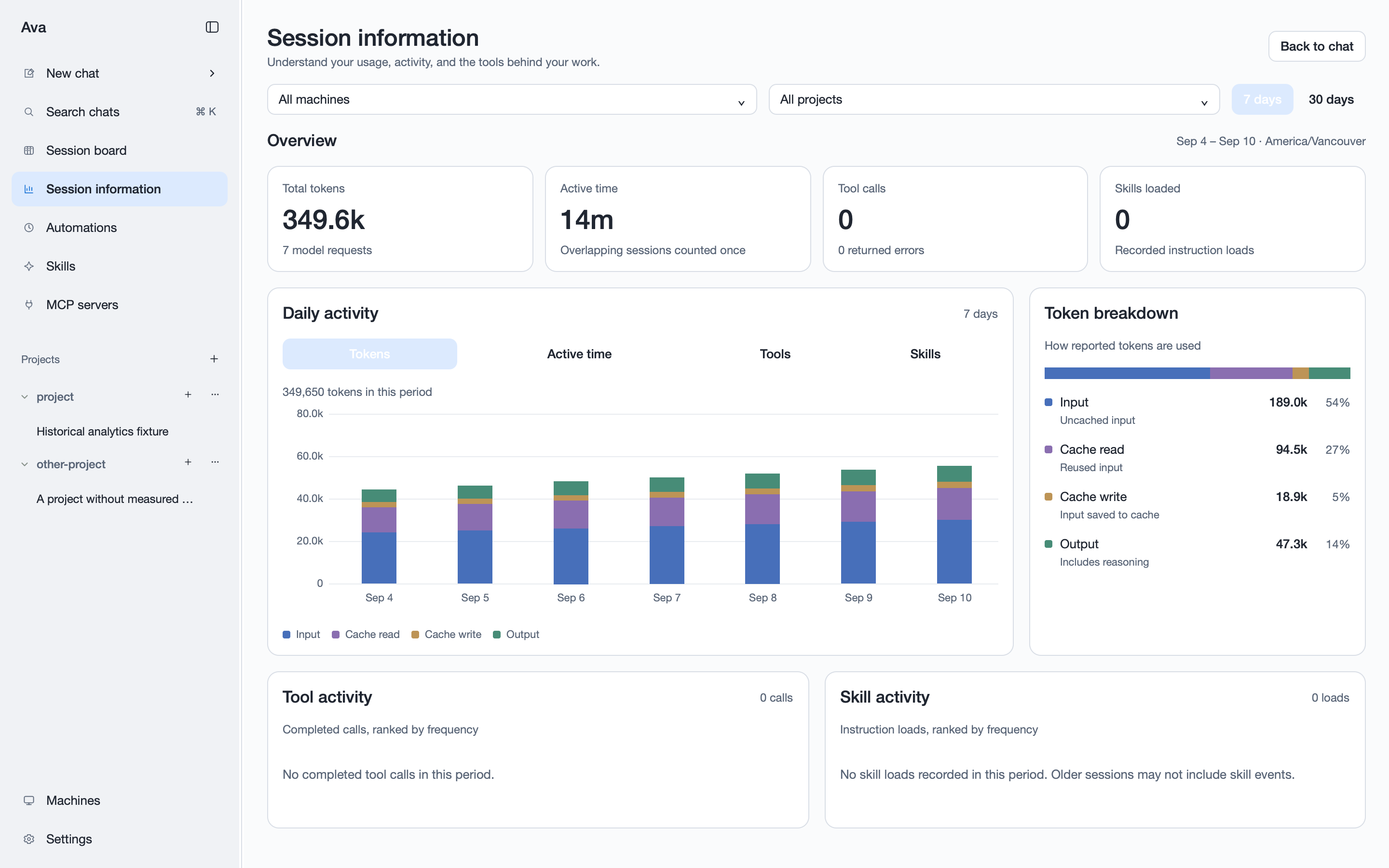
Inspect token usage and activity over time, then narrow the view by project or machine. This screenshot uses sample history, not billing data.
The token breakdown separates uncached input, cache reads, cache writes, and output, including reasoning. Cache reads are input reused from a provider’s cache; cache writes are input the provider reports saving for reuse—not files Ava writes to your workspace. The view also shows active agent time, tool activity, and observed skill loads.
Usage includes recorded providers and models across the selected projects and machines, not just the model currently selected in a conversation. Counts come from provider reports: missing values are identified rather than estimated, and totals include known counts only. This is a usage view, not a bill or a measure of task quality.
Software work, too
Ava still handles the work it started with: reading code, making changes, running commands, and checking tests. Open interactive terminals beside the conversation. Review working-tree and staged diffs in Changes, then stage, unstage, or commit without switching applications.
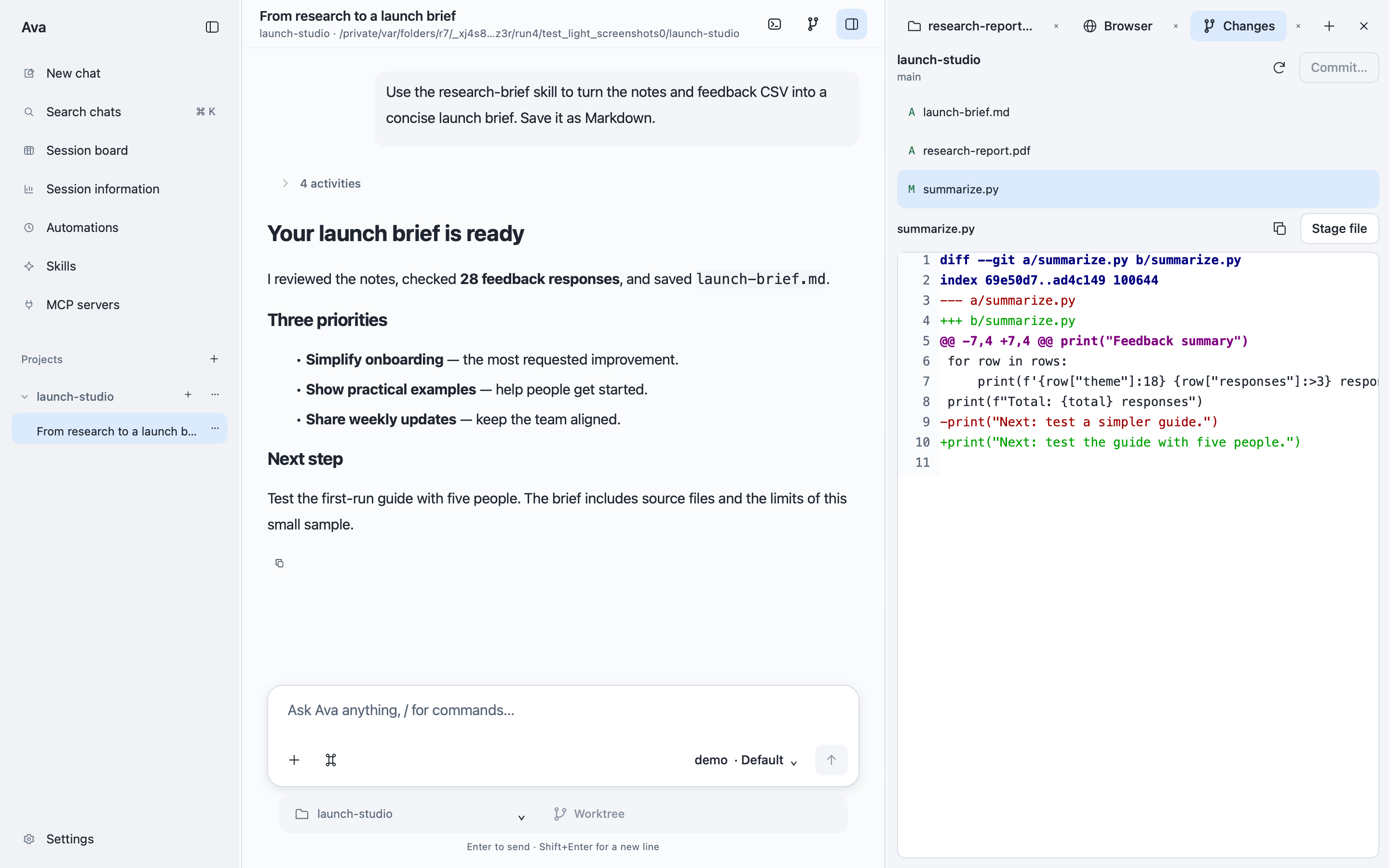
Inspect what changed before you commit. Git hooks still run, and a failed commit preserves your message and staged files.
For isolated work, turn on Worktree beside the project selector. Ava creates a separate checkout on first send, leaving uncommitted work in your original folder alone.
Models and interfaces
Choose Anthropic, OpenAI, DeepSeek, an existing Codex CLI login, or a custom OpenAI-compatible or Anthropic-compatible endpoint. Configure connections in Settings → Providers, then choose a model and supported reasoning effort for each conversation.
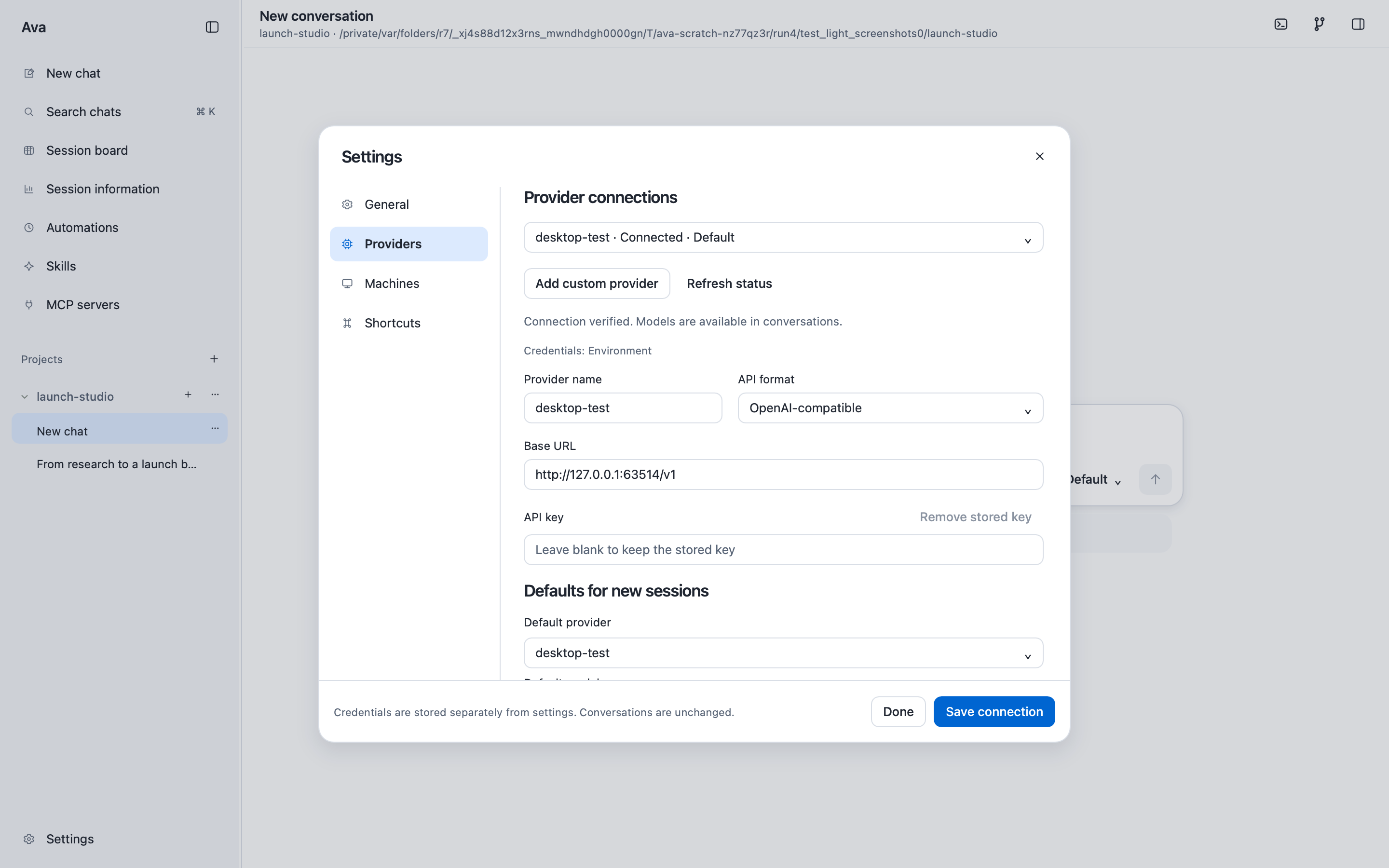
Connections and credentials are separate from a conversation’s model choice. This example uses a local test endpoint.
Bring your own provider access. Availability, supported inputs, and charges depend on that provider. A local application does not mean every model runs offline.
- Desktop: the full workbench, including browser handoff, previews, terminals, skills, connected tools, schedules, and SSH machines.
- Web UI: local browser-based conversations, attachments, streaming tool activity, and provider settings.
- CLI: one-shot tasks, scripts, saved sessions, and session inspection.
- Python API: embed the agent runtime in your own application with custom tools.
Getting started
Ava is a private-source alpha. There is no public desktop installer at present. This page is the public product guide; the source repository and its releases are not publicly accessible. Contact Min about access.
If you already have repository access, the current source setup requires macOS or Linux, Python 3.12+, and uv. From your authenticated checkout:
uv sync --extra desktop
uv run --extra desktop ava-desktop --project .
- Choose a folder. Start with a small workspace containing material you are comfortable sharing with your model provider.
- Connect a model. Open Settings → Providers, configure your provider, and choose a model for the conversation.
- Ask for a concrete result. Try: “Summarize the Markdown files in this folder and save a brief in summary.md.”
- Review the work. Open the output beside the conversation and inspect the tool activity. Refine the result with a follow-up.
For the local Web UI, run uv run ava --serve from the checkout. For a terminal task, use uv run ava -p "Summarize the Markdown files in this folder". These interfaces also require provider configuration; the default CLI provider uses ANTHROPIC_API_KEY, or you can select an existing Codex CLI login with --provider codex.
Permissions and privacy
Know what you’re giving an agent access to before putting it to work.
- Tools run with your account’s permissions. File and shell tools have no sandbox or per-call approval. Use a restricted account or environment where appropriate.
- Local storage is not an offline guarantee. Workspace history stays on the execution machine, but content needed for model requests goes to your chosen provider. Connected tools may use external services.
- History can contain sensitive material. Treat saved sessions as you would the source files and conversations they record.
- Review consequential actions. Browser handoff is not a permission gate for all tools. Check important outputs and the tools and servers you enable.
What has been measured?
A September 2026 22-task SWE-bench Pro coding pilot recorded 11/22 tasks solved by Ava, compared with 10/22 by Pi 0.85.1. Both used the same model and reasoning settings, fresh environments, matched budgets, and one attempt per task. Independent grading covered all 44 attempts, including an interrupted Pi attempt.
Ava averaged 3.65 agent minutes per task versus Pi’s 3.18, with 515 tool calls versus 475. Per-request subscription cost was not measured.
The one-task difference is not evidence of general superiority. This is a small development sample, not a full benchmark score or an evaluation of research, writing, analysis, or browser work. The underlying report is currently in the private repository; this summary is not a public reproducibility package.
A folder. A goal. A place to work.
Less copying between tools.
More work you can review.
Ava is still in alpha. Want to discuss access or a workflow you have in mind?